
ADVISORY: GASMO 3.5x Stops Working on March 1, 2016
GASMO is a tool used by Microsoft Outlook to synchronize information to Google Apps. On March 1, 2016, GASMO may stop working for some customers. Here's how to fix it.
Some of my clients may be using the Google Apps Sync for Microsoft Outlook (GASMO) client. It's what allows them to use Google Apps with Microsoft Outlook; GASMO synchronizes email, contacts, calendars, and notes to the cloud.
On Monday March 1, 2016, Google is retiring an older version of this product. Users who haven't upgraded to a higher version may experience a situation where they won't receive their email - and/or their Notes won't synchronize - in Outlook.
Note: This situation only affects users who are using Microsoft Outlook. If you don't use Outlook, you can disregard this advisory. It also would not affect any user that I recently helped with Outlook since January 2015.
How to check what version of GASMO you're running:
1. Go to the System Tray. It's next to the time on your PC, lower left hand corner.
2. Look for the white and green round swirly icon. Right click on it. Select About.
3. The GASMO splash screen will show the version.


If the version is equal to or less than 3.5.385, then your GASMO must be updated.
Please take a moment today to:
1. Browse to the sync tool website.
2. Close Microsoft Outlook.
3. Click on the Download Google Apps Sync button.
4. Run the file.
5. A process will install the latest version of the tool.
6. When the installation finishes, it'll say so, and provide a dialog for an email address. You can just cancel at that time; you do not need to provide it; you are already configured to use Outlook.
7. Re-open Outlook.
You'd now be using the latest version of the sync tool.
Also, it is not harmful to update your current version of GASMO. You may do so voluntarily if you wish.
If you need assistance or find yourself with email issues come March 1, 2016, please feel free to contact me. I can remote in and help you.
Thanks again.
R

Google Apps Makes Email Even More Secure
Google Apps for Business makes email even more secure by introducing notices for unauthenticated and unencrypted email transmissions.
In honor of Safer Internet Day, Google announced that they'll be introducing a security notice to users when composing email. The changes will be implemented over the next few weeks.
The change is subtle and will only affect users who use their web browser to access Gmail. Those who use legacy mail clients like Outlook and Thunderbird will not receive this warning.
When a user receives a message from - or, is in the process of composing a message to - a party that doesn't support encrypted connections for email, they may see an open lock icon in the message.

This icon is advising the user that the party they're conversing with isn't using encrypted email transfers and thus the information that's being exchanged is at risk.
Encrypted email exchanges are already performed for Gmail and Google Apps users.
A second security feature involves displaying a question mark for the user's avatar in Gmail when the sender can't be confirmed:
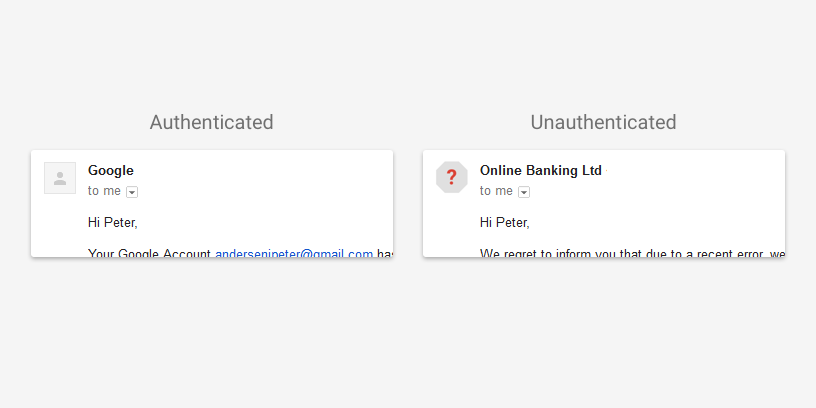
Generally speaking, a user should exercise caution when responding or acting upon email from an unauthenticated sender. It could potentially mean that the senders mail account was hacked, or, they're a spammer.
These notices are advising the user that the exchange is with a party outside of the Google ecosystem who haven't implemented forms of mail control called DKIM/TLS/SPF to encrypt email and authenticate senders/receivers. If you're wondering, all of my mail setups for clients include these settings so that their mail is as secure as possible.
There's nothing users need to do take advantage of these new features. They will be rolled out in the coming weeks. Any and all questions from my clients can be directed to me and I'll be happy to assist you.
R

Sync'ing Your Browsing Experience on Mobile Devices
Where ever you go, there you are. And you'd want your browser settings with you. Google Chrome makes it easy to sync your browser settings across mobile devices.

In my consulting practice, I spend a great deal of time trying to show my clients how to securely access their email, contacts, calendars, and files on mobile devices. As a Google for Work Partner, I show them how Google Apps for Work anywhere, at any time, on any device. That's the benefit of working with an Apps Partner: Partners have the knowledge to ease the transition to cloud computing as well as the experience to make the most of it.

One overlooked benefit of cloud computing is synchronizing the browsing experience. When you're using a browser on your desktop computer, you're constantly entering information. Over time, that information gets cached (stored) in the browser's memory so it becomes easier to re-enter that information. The data just pops-up when it's requested. Things like form fields (names, addresses, telephone numbers), user login names and passwords, credit card numbers, and the like. Users will also install extensions that enhance their browsing experience; users will create bookmarks and favorite websites within the browser; the browser keeps a running history of the last pages that were visited so you can easily go back to something that you were looking at earlier. All of these capabilities ease the browsing experience and extend a degree of convenience to the user.
Well, why can't you take that experience with you? That's the idea behind Google Chrome. Chrome is Google's browser and it attempts to synchronize all of this information on any device that you use. On Android devices, Chrome is installed by default; on iPhones and iPads, Chrome can be downloaded from the App Store. Once you sign in, Google synchronizes all of that data to your mobile device, and, if changes are made on the mobile device, those changes are shared to your other computers running Chrome.

And don't worry: it's secure. This data is transmitted and stored encrypted on every device, and every user has the capability to remotely de-authorize devices and delete that data from their Google Account dashboard.
Even better, as a part of Google App's Mobile Device Management (MDM) features, small businesses have access to implementing Chrome Cloud Policies that allow us to implement technical restrictions and rules for how web browsing and content is accessed within the context of an organization.
So why do this browser sync stuff?
Well, it saves time. It adds convenience. With MDM, we can increase security and reduce risk. It makes it easier to take the web with you. In the context of small business, it can reduce learning curves and training costs for using web-based applications because it distributes the same experience across multiple devices; it increases productivity; it diminishes the cost of support. Simply put, browser synchronization makes it easier to get work done.
Want to know more? You're at the right place! Just get a hold of me - I'd be happy to answer your questions. Thanks for your time.
R