
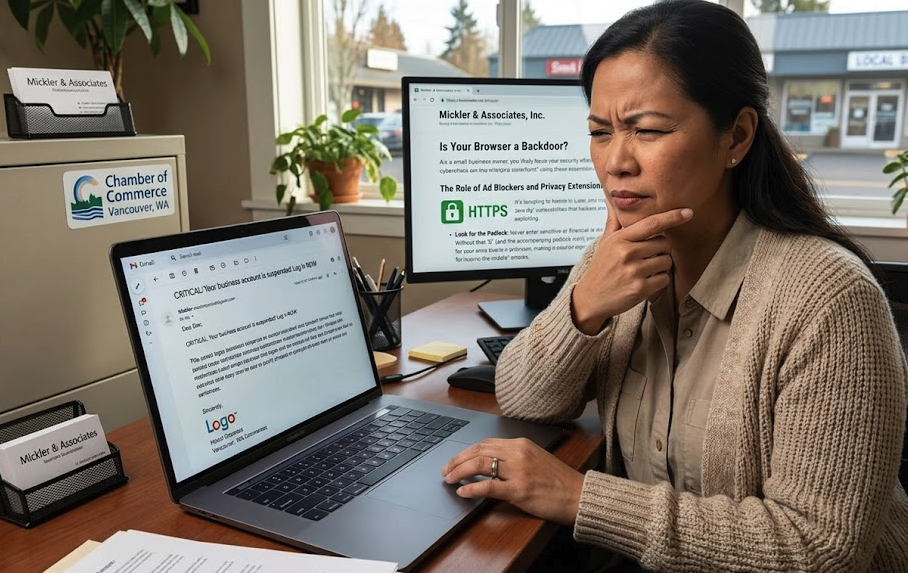
Is Your Browser a Backdoor?
Your web browser is often the weakest link in your small business security. Russell Mickler explains why 48% of attacks involve browser activity and provides actionable, non-technical steps—like enabling Chrome's Enhanced Protection—to shield your business from data theft, ransomware, and man-in-the-middle attacks.
As a small business owner, you likely focus your security efforts on strong passwords or complex firewalls. However, recent data suggests the real danger is much closer to home. According to a report highlighted by ZDNet, 48% of all cyberattacks now involve web browser activity.
For a small business, a single compromised browser can lead to data theft, ransomware, or financial ruin. Here is how you can secure your "digital storefront" using these essential tips.
The Big Three: Simple Moves for Major Impact
You don't need a massive IT budget to close the most common security gaps. Start with these three non-negotiables:
Update Relentlessly: It’s tempting to click "Remind Me Later," but browser updates are your first line of defense. They contain critical patches for "zero-day" vulnerabilities that hackers are already exploiting.
Look for the Padlock: Never enter sensitive business or financial data into a site that uses HTTP instead of HTTPS. Without that "S" (and the accompanying padlock icon), your data is traveling in plain text, making it an easy target for "man-in-the-middle" attacks.
By enabling "Always use secure connections" in Chrome, you are essentially putting a safety guardrail on your browser. Here is how this prevents a compromise:
Blocks "Man-in-the-Middle" Attacks: Without SSL (HTTPS), data sent between your computer and a website — like a credit card number or a login — is sent in "plain text." This means anyone on the same network (like at a coffee shop) can intercept and read it. Chrome’s native protection forces an encrypted connection, making that data unreadable to prying eyes.
Prevents Accidental Phishing: Many phishing sites are hosted on cheap, unencrypted HTTP servers. If you accidentally click a link to one of these, Chrome will stop you with a full-page warning before you even see the site, preventing you from ever entering your credentials.
Advanced Protection for Your Team
If your employees are online all day, consider these additional layers:
Ad Blockers: Tools like Privacy Badger don’t just stop annoying pop-ups; they prevent malicious "Clickfix" scripts and tracking that can slow down your systems and leak data.
Enhanced Protection: Within Chrome’s Privacy and Security settings, toggle on Enhanced Protection. This provides real-time warnings against known phishing sites and dangerous downloads before they can touch your hard drive.
The Bottom Line
In the age of AI-driven threats, your web browser is a primary target. By turning these habits into standard operating procedures for your business, you can significantly reduce your risk of becoming a statistic. Need help flipping these switches? Give me a ring.
R

How to Manage a Cybersecurity Incident
Cybersecurity isn't just for "Big Tech"; small businesses are prime targets. This non-technical guide breaks down a leadership-focused incident response runbook. Learn how to "stop the bleeding," communicate securely, and manage the aftermath of a breach to turn a potential crisis into a resilient strategy for your business's future.
You’re a small business owner. Cybersecurity sounds like a problem for bigger fish, but small businesses are often the primary targets for digital criminals. Why? Because they’re easy-pickin’s: small businesses are usually very busy and have no IT department.
So, again, you’re a small business owner. If you discovered a breach today, what would you do? Most owners don't, and that panic often leads to expensive mistakes.
Managing an incident isn’t just for technical engineers. It’s for people like you who must manage a crisis.
Here is a non-technical guide to help you navigate a security crisis without losing your cool.
1. Don’t Panic—Communicate Privately
When you suspect something is wrong — perhaps a suspicious wire transfer or a locked computer — the first step is to gather your key players. Avoid discussing the details on your main company email or Slack; if your system is compromised, the hackers might be "listening" to your plans. Keep your conversations private and offline until you’re in the clear.
2. "Stop the Bleeding"
Your instinct might be to start investigating "how" the breach happened. Ignore that for now. Your priority is to stop the damage.
Isolate: If one computer is behaving strangely, disconnect it from the network and Wi-Fi or just shut it down — even better.
Consult Experts: Talk to your IT provider before deleting information. Blindly cleaning up after a cybersecurity incident can sometimes delete the very evidence needed to recover your data or cause a permanent system crash.
3. Verify the Impact
Ask your team: “What is the worst-case scenario right now?” Is it customer credit card data? Your payroll system? Knowing exactly what is at risk helps you decide if you need to call your lawyer or insurance provider immediately.
4. Fix, Then Clean
Once the immediate threat is neutralized, implement a fix.
I’ll give you an opinion. It’s best to never just "clean" a hacked computer. It’s safer to wipe it entirely and restore from a known clean backup. This ensures no "backdoors" are left behind for the hacker to return.
I’ll give you another opinion. If you’re verifying the impact, and if you suspect the impact may involve criminal activity (an internal or external aggressor may have committed a crime), you may need to preserve the evidence of that crime, thus wiping a computer isn’t an option. Authorities must be notified, and the data has to be preserved in a forensically-acceptable way.
5. Loop in the Professionals
If you suspect customer data was stolen, or if you believe a crime was committed, you likely have legal obligations.
Legal & PR: Digital privacy laws vary by state. Consult your legal counsel before sending a mass email to customers. The wording matters for your liability.
IT: Contact your IT provider for advice and best practices.
Insurance: Contact your cyber-insurance carrier early; they often provide forensic experts to help you recover.
6. The "After-Action" Review
Once the dust settles, hold a postmortem. Sit down with your team and ask: How did they get in? How can we stop it from happening again? Use this moment to turn a crisis into a stronger, more resilient business strategy. Document, document, document. Record when you learned of the event, how you communicated the event to your staff, how you stopped the bleeding, how you performed an investigation, and what countermeasures you performed. Maintain an incident log so that you can learn from your mistakes or issues over time.
Need help building your defense?
We help small businesses turn IT from a source of stress into a managed asset. Please reach out to us to help secure your operations today.
R

Mastering the SLAM Method to Avoid Phishing Attacks
A single deceptive email can compromise your entire business. Is your team trained to spot the fakes? Discover the SLAM method—a simple, four-step framework (Sender, Links, Attachments, Message) designed to help small business owners identify phishing attempts in an era of evolving cyber threats.
The fallout from a security breach can be catastrophic for a small business. We recently saw an uptick in unauthorized emails targeting contacts with fraudulent requests for money. While these incidents are stressful, they highlight a critical truth for small business owners: your first line of defense isn't a firewall; it's your ability to spot a phish.
To keep your business and your team safe, we recommend a simple, memorable framework called the SLAM method. SLAM stands for Sender, Links, Attachments, and Message. Here is how to use it to evaluate every email that hits your inbox.
1. S (Sender)
Always scrutinize the sender's email address. Cybercriminals are masters of "spoofing" or creating addresses that look nearly identical to trusted sources. Before you hit reply, verify that the address matches the expected source exactly. If it looks off, treat it as a threat.
2. L (Links)
Be extremely cautious with embedded links. Before clicking, hover your mouse over the link to preview the actual destination URL. If the previewed address doesn't match the content of the email or leads to a suspicious-looking domain, do not click.
3. A (Attachments)
Think twice before opening any attachment, especially if it was unexpected. Malicious files are the primary way hackers infect devices with malware or ransomware. If you weren't expecting a document, call the sender to verify it before opening.
4. M (Message)
Pay close attention to the tone and content. Does the email create a sense of extreme urgency? Are there glaring spelling errors or unusual language? Be particularly wary of any request for sensitive information or financial transactions.
What to Do if You Suspect a Phish
If an email feels "off," do not respond. Report it as junk and delete it immediately.
When in doubt, pick up the phone and give me a call, or, forward me a screenshot. 30-seconds today could save your business from a year of headaches.
R