

The Role of Cloud Solutions in Modern Healthcare Practices
Cloud platforms now power EMR systems, secure communication, and remote access for modern medical practices. But moving to the cloud doesn’t eliminate risk or responsibility. Misconfigured access, weak security, and poor oversight can still expose patient data. This article explains how cloud solutions reduce costs and improve flexibility — and why thoughtful planning, proper configuration, and local IT guidance are essential to keeping your practice secure and compliant.
Healthcare practices in Vancouver, WA, and Portland, OR, are increasingly turning to cloud solutions.
Cloud platforms power many EMR and EHR systems, support secure communication, and allow clinics to operate efficiently without maintaining expensive on-site servers.
At its core, the cloud shifts infrastructure from a physical back room to a professionally managed data center. Effectively, you’re shifting risk from yourself to another vendor. That means your electronic medical records, scheduling systems, and billing platforms can be securely accessed from anywhere with proper authentication. For providers who split time between clinic locations — or need secure remote access from home — this flexibility is invaluable.
Why is this good? For starters, most medical professionals are not technology professionals. Vendors can manage your data more securely and at a higher level of economies of scale than you can.
Further, cloud systems also reduce or contain capital expenses. Instead of replacing aging servers every few years, practices typically move to predictable monthly costs. Updates, patching, and hardware maintenance are handled behind the scenes. This helps clinics focus on patient care rather than troubleshooting equipment failures.
But cloud adoption doesn’t automatically equal security. Misconfigured access controls, weak passwords, or improperly secured mobile devices can still expose patient data. HIPAA compliance with the Security Ruling doesn’t disappear simply because your data is hosted elsewhere. Management is still responsible for ensuring secure email, encrypted file sharing, controlled user access, and reliable backups.
This is where a local IT consultant plays an important role. A knowledgeable partner ensures migrations are planned carefully, downtime is minimized, and security settings are properly configured from day one. Multi-factor authentication, device management policies, backup verification, and vendor oversight all need to be part of the conversation.
Cloud solutions, when implemented thoughtfully, offer modern healthcare practices scalability, resilience, and operational flexibility. But success depends on leadership involvement and proper configuration. With the right strategy and oversight, the cloud becomes more than a convenience. It becomes a secure foundation for delivering consistent, reliable patient care.
Need help? I’m just a click away.
R

HIPAA Compliance and IT: What Vancouver Clinics Need to Know
HIPAA compliance isn’t just paperwork — it’s a technology issue that requires active management oversight. From encrypted email and secure file sharing to controlled access and reliable backups, clinics must protect patient data wherever it lives. Too many practices assume their tools are automatically compliant. They aren’t. This article explains common gaps, management responsibilities, and how the right IT partner helps safeguard both patient information and your reputation.
For medical and dental practices in the Vancouver area, HIPAA compliance is a daily operational responsibility. And while HIPAA often gets framed as a paperwork exercise, the reality is simple: compliance begins with your technology policy.
The HIPAA Security Rule requires clinics to protect electronic patient information wherever it lives: email, file storage, cloud platforms, laptops, and mobile devices. That means management must ensure systems are secure, access is controlled, and patient data is handled appropriately by staff.
One of the most common mistakes I see in my practice is assuming email and file-sharing tools are automatically compliant. They aren’t. Standard email without encryption, personal Google Drive or Dropbox accounts, and shared login credentials all create exposure. If protected health information (ePHI) is transmitted or stored without proper safeguards, your clinic can face fines, breach notifications, and reputational damage.
Another frequent gap is a lack of oversight. HIPAA requires management involvement to set expectations. The buck stops with them, not just a software vendor. Clinics must know where patient data is stored, who has access to it, how it’s backed up, and whether those backups are secure. Written policies, employee training, and periodic reviews of system access are all part of demonstrating compliance and due care.
This is where a knowledgeable IT partner becomes critical. A good IT provider helps configure secure email, enforce encrypted file sharing, maintain access controls, set up BAA’s (Business Associate Agreements), and ensure data is backed up and recoverable. Just as importantly, they help management understand what’s in place and what still needs attention.
HIPAA compliance isn’t about perfection. It’s about awareness, reasonable safeguards, and documented oversight. When clinics take a proactive approach to managing their IT environment, they protect more than data — they protect patient trust and their practice's reputation.
R
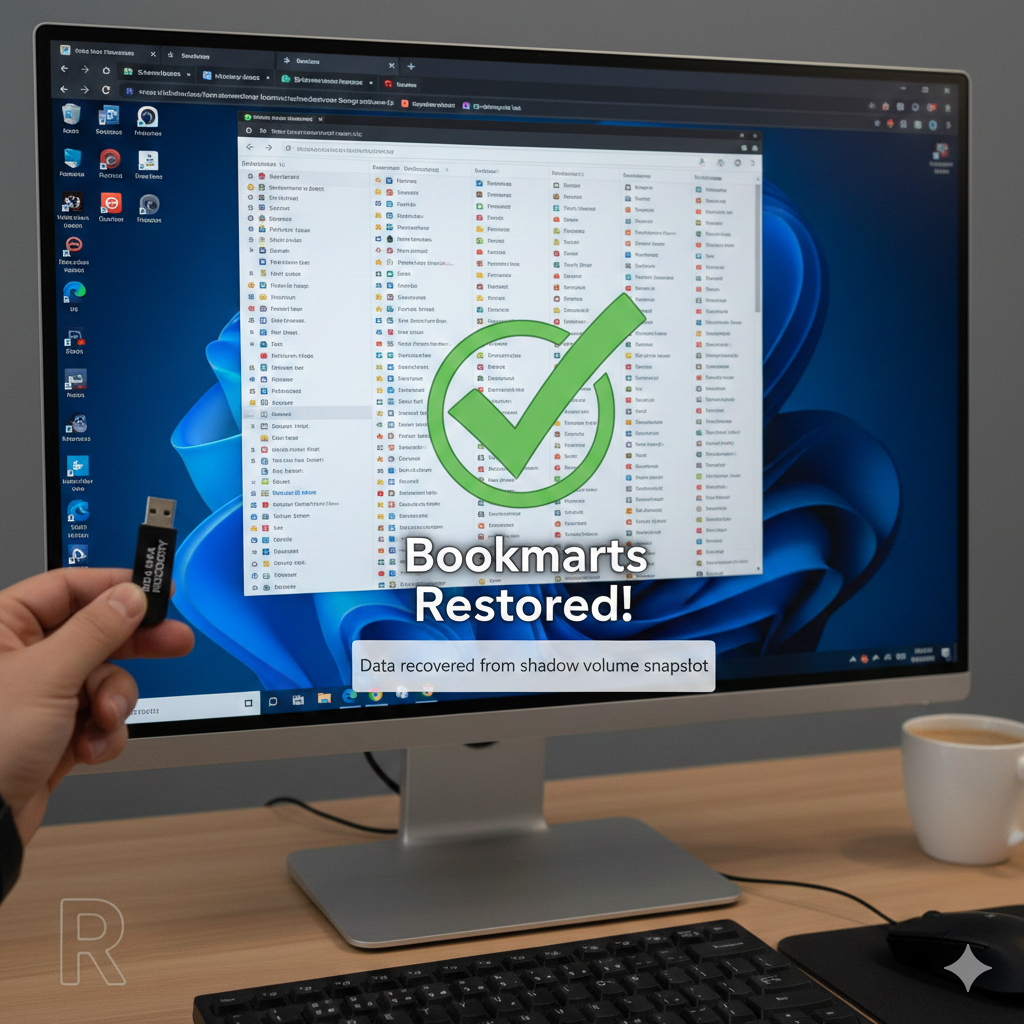
How to Recover Chrome Bookmarks After Reinstallation
A routine Chrome reinstall nearly turned into a disaster when a client’s hundreds of bookmarks vanished — no Google sync, no backup, no safety net. Instead of accepting the loss, I turned to Windows Shadow Volume copies and recovered the Chrome user data folder from a recent snapshot. Inside was the bookmarks JSON file. Minutes later, everything was restored. A reminder: even when data seems gone, the system may still be keeping quiet backups.
Helping a client the other day, I was forced to uninstall Google Chrome from a Windows 11 computer.
After rebooting, I reinstalled Chrome but tragically learned that the user hadn’t used a Google account to sync her bookmarks and settings. Hundreds of bookmarks were potentially lost.
After closing Chrome, I accessed the shadow volume and recovered the %appdata%\local\google\chrome\user data\default directory from the last snapshot (roughly an hour earlier).
In that recovered folder was a JSON file named Bookmarks. I copied it out and added it to the live folder, overwriting the existing version, and restarted Chrome.
All of her bookmarks were restored. The user was relieved!
R