

Google Drive Upgrade Protects Against Ransomware
Protect your small business from data loss with Google Drive’s new AI-powered ransomware shield. Learn how this automatic "alert and pause" feature stops sync infections, protects your Workspace data, and simplifies file recovery—all at no extra cost. Plus, get step-by-step instructions to update your team today.
For small business owners, the word "ransomware" is enough to cause a sleepless night. A single infected laptop can sync encrypted files to the cloud, potentially wiping out years of work in minutes. However, a new security upgrade from Google Drive is changing the math for anyone running Google Workspace.
Traditionally, cybersecurity has been a game of "before" and "after”: you either block the virus with antivirus software or you recover from a backup after the damage is done. Google’s new AI-powered ransomware detection fills the critical gap in between.
How It Works
Instead of just looking for known viruses, Google’s AI monitors how your files are behaving. If it detects a sudden burst of file encryption or corruption—the hallmark of a ransomware attack—it takes three immediate actions:
Pauses Syncing: It instantly cuts the connection between your computer and the cloud, preventing the "infection" from spreading to your online backups.
Alerts You Immediately: You’ll receive bold notifications on your desktop and in your inbox so you can take action before the entire network is compromised.
Simplifies Recovery: If a few files were affected before the pause, a new, user-friendly interface allows you to revert those specific files to their "pre-infection" versions.
Why This Matters for Small Business
Large corporations have massive IT budgets for "Endpoint Detection," but small businesses often rely on basic tools. This update brings enterprise-grade protection to your Workspace account at no extra cost.
By catching attacks 14 times more effectively than previous methods, this "ransomware shield" acts as a vital safety net. It ensures that even if a threat slips past your first line of defense, your most important business data remains safe, searchable, and recoverable.
Stay secure, stay productive, and let Google's AI watch your back.
Expert Tip: Ensure you are running Google Drive version 114 or later on your desktop to benefit from these automated "alert and pause" features! Just update Google Drive on your computer.
On a Windows Machine
Locate the Icon: Look for the Google Drive icon in your System Tray (bottom-right corner of your taskbar, near the clock). You may need to click the "up arrow" to see hidden icons.
Open Settings: Click the icon, then click the Settings gear icon in the top-right corner of the small pop-up window.
Check for Updates: Select About. A window will appear showing your current version. If an update is available, a button or link to "Update" or "Restart to Update" will typically appear here.
Manual Reinstall: If it isn't updating automatically, the most reliable way is to download the latest installer directly from the Google Drive download page and run it. It will overwrite your old version without deleting your files.
On a Mac
Locate the Icon: Find the Google Drive icon in the Menu Bar at the top-right of your screen.
Open Settings: Click the icon, then click the Settings gear icon.
Check for Updates: Select About. This displays your current version. macOS versions often prompt you with a notification when a restart is required to apply a downloaded update.
Force an Update: If you suspect you are behind, quit the app entirely (Settings Gear > Quit). Then, download the .dmg file from the Google Drive download page. Open the file and drag the Google Drive icon into your Applications folder, choosing "Replace" when prompted.
How to Verify Your Version
Once the app is open, you can always verify you are on the safe side of the "ransomware shield" by following these steps:
Click the Google Drive icon.
Go to Settings (Gear) > About.
Ensure the version number starts with 114 or higher (e.g., 114.0.2.0).
Note: If you manage multiple machines for your team, you can also push these updates centrally through the Google Admin Console if you have the proper administrative privileges.
Need help? I’m your guy. Let’s talk.
R

Google Data Migration Service START Button Grayed Out
So, maybe you’re like me.
You’ve got a 100 or so user’s mailboxes you need to migrate from Microsoft 365 to Google Workspace.
You’ve completed your setups; the impersonation rights are set on your global admin in M365, and, you’ve assigned full control rights over all target mailboxes.
You strike up Workspace and start the Data Migration Service, successfully authenticate, and start adding users, but it won’t let you. You’ve got a GRAY START BUTTON like this.

And it’s frustrating the hell out of you because, hey, you’re a good tech, you did your planning, etc.
Well, I found a solution.
What’s happening here is that you’ve authenticated this process under another domain and not the domain you think you’re targetting. The oAuth token isn’t being saved under the right account or domain.
For me, I was in my Google Reseller console trying to kick this off, and the damn thing was trying to target my own domain rather than the tenant’s domain.
So, kill the data migration.
Login to the admin console under a Super Admin for your domain under an incognito window and set up the Data Migration Service parameters again.
You should now be able to target a user by typing … it matches, you can press start.
There’s nothing like this in the docs, of course, but hey, I just pulled my hair out for an hour … maybe I can help save yours :)
R
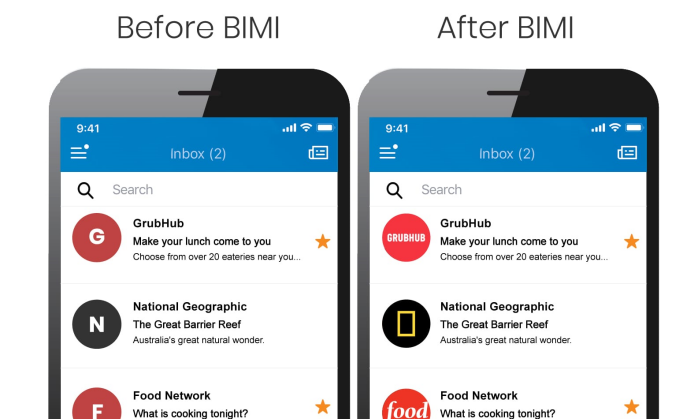
G-Suite End-Users Hardened Against Phishing Attacks with BIMI
Google is implementing the BIMI standard to help protect G-Suite users from spam and fraud, and to help filter phishing attacks.
Phishing attacks are emails that attempt to trick the user to click on a hyperlink to access a system they shouldn’t. In order to convince the user to click, hackers will often include the business logos of trusted brands to bestow a feeling of legitimacy and importance.
On July 21, 2020, Google announced a new security feature that’ll be rolled-out to G-Suite users to help protect them from these kinds of attacks.
The feature implements an emergent email standard called Brand Indicators for Message Identification (BIMI) and its function is to uniquely verify the use of corporate logos using the DMARC system - the same system that’s used to validate the authenticity of an email sender.
Emails delivered to Google’s mail system are scanned for fraud and abuse. Under BIMI, a registered brand logo will be validated and presented to the G-Suite end user in the round avatar slot aside an email. It’s a visual cue that both re-affirms brand-trust and indicates safety to the end user.

Messages that fail validation for the use of a corporate logo are filtered from the end user.
The technical side of BIMI requires email senders to:
use SPF and DKIM, and to publish a specific DMARK enforcement policy for the domain of either “p=quarantine” or “p=reject”.
register their logo with the BIMI working group and publish a BIMI record;
acquire a Verified Mark Certificate for their logo (a Google-specific requirement currently offered by only Entrust, DataCard, and DigiCert).
All of these controls benefit the G-Suite user as fraudulent use of corporate logos would potentially be filtered, making their use within spam and phishing attacks useless.
Google intends to implement this feature (and many others related to mail safety) over the next year.